One of the most common questions Android developers face is: “Should I put my app icon in mipmap or drawable?” The answer affects not just organization, but also app performance, launcher behavior, and resource management.
This comprehensive guide explains the critical differences between mipmap and drawable directories, when to use each, and best practices for 2026.
Understanding Mipmap Directories
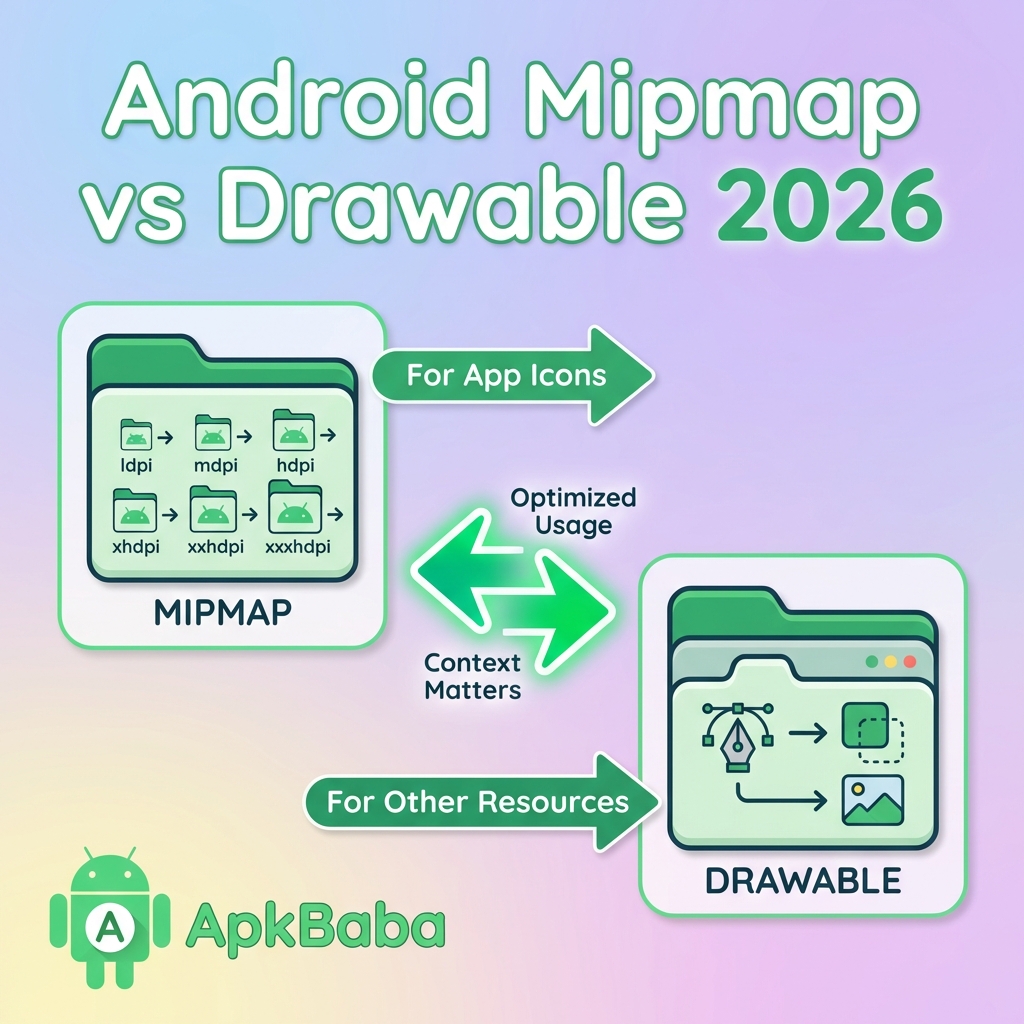
Mipmap directories were introduced in Android 4.3 (API 18) specifically for launcher icons. The name “mipmap” comes from texture mapping in 3D graphics, where multiple resolutions of the same image are stored.
Key characteristics:
- Designed specifically for app launcher icons
- Preserved at higher quality during APK optimization
- Not affected by resource shrinking
- Supports adaptive icons (Android 8.0+)
Understanding Drawable Directories
Drawable directories are the traditional location for all image resources in Android apps.
Key characteristics:
- Used for all UI images except launcher icons
- Subject to resource shrinking
- Optimized during build process
- Supports all image formats (PNG, WebP, JPEG, XML)
When to Use Mipmap
Use mipmap directories exclusively for:
- App launcher icons – The icon users see on their home screen
- Adaptive icons – Foreground and background layers
- Round icons – For launchers that support circular icons
Example structure:
res/
  mipmap-mdpi/
    ic_launcher.png
  mipmap-hdpi/
    ic_launcher.png
  mipmap-xhdpi/
    ic_launcher.png
  mipmap-xxhdpi/
    ic_launcher.png
  mipmap-xxxhdpi/
    ic_launcher.png
When to Use Drawable
Use drawable directories for:
- All UI images – Buttons, backgrounds, icons within the app
- Vector drawables – Scalable graphics
- State lists – Button states, selectors
- Shape drawables – Programmatic shapes
- Nine-patch images – Stretchable graphics
Why the Distinction Matters
1. Launcher Optimization
Android launchers may display your icon at sizes different from your app’s target density. Mipmap resources are preserved at higher quality to ensure crisp launcher icons across all devices.
2. Resource Shrinking
When you enable resource shrinking, drawable resources may be removed if unused. Mipmap resources are always preserved, ensuring your launcher icon is never accidentally deleted.
3. APK Size
Mipmap resources are treated specially during APK optimization, maintaining quality while drawable resources may be more aggressively compressed.
Best Practices for 2026
1. Use Adaptive Icons
Modern Android apps should use adaptive icons for better integration with different launcher styles:
res/
  mipmap-anydpi-v26/
    ic_launcher.xml
  mipmap-hdpi/
    ic_launcher_foreground.png
    ic_launcher_background.png
2. Provide All Densities
Always provide launcher icons for all density buckets (mdpi through xxxhdpi) to ensure crisp display on all devices.
3. Use WebP for Drawables
Convert drawable images to WebP for 25-35% size reduction. Launcher icons should remain PNG for maximum compatibility.
4. Organize by Function
Create subdirectories within drawable for better organization:
drawable/
  icons/
  backgrounds/
  buttons/
Common Mistakes to Avoid
- Putting UI icons in mipmap – Only launcher icons belong there
- Missing density buckets – Provide all densities for launcher icons
- Using JPEG for icons – PNG or WebP with transparency is better
- Inconsistent naming – Follow Android naming conventions
Conclusion
The mipmap vs drawable distinction is simple: mipmap for launcher icons, drawable for everything else. Following this convention ensures optimal app performance, proper resource management, and crisp icons across all Android devices.
For more Android optimization tips, check out our free WebP converter tool to reduce your app’s image sizes.